 Blog
Blog Links
Links Contact
 About
AboutHow to insert a signature in Okular PDF viewer
Publish Date: 2026-07-10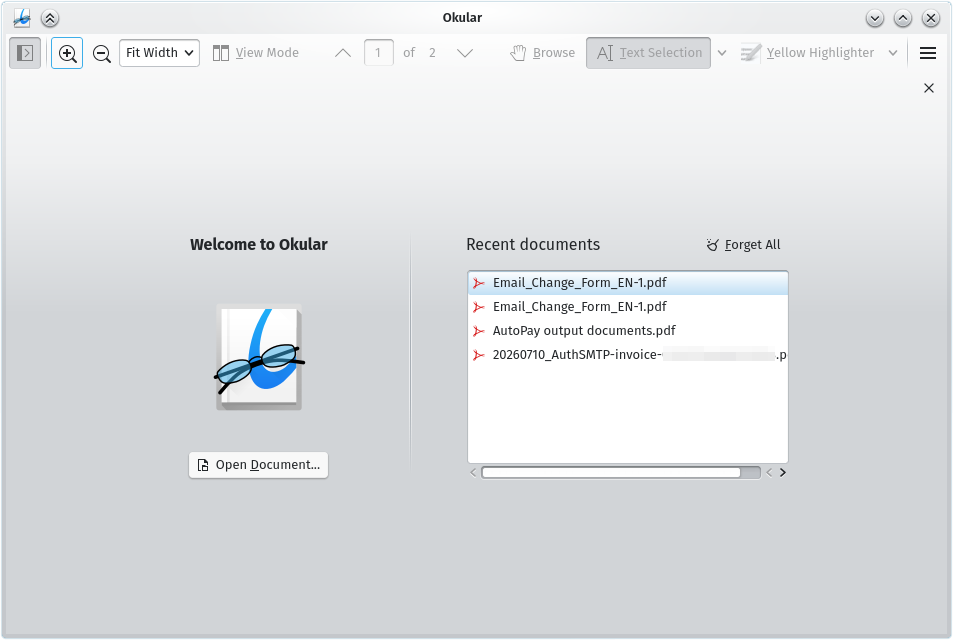
Today, I had to sign a document for an "address change request" with my domain registrar due to ProtonMail deleting the email account tied to my registrar account. Fun times...
Anyhow, I needed to insert my signature onto a PDF document and was trying to figure out how to do this with Okular instead of resorting to GIMP, like I usually do in these sort of predicaments. GIMP works, but because it's an image editor, it'll convert the PDF into an image which removes the selectable text from the document which is kind of crummy and looks unprofessional. I like Okular because it's clean and actually a decent PDF viewer, but inserting a signature wasn't exactly straightforward so I wanted to share how to set this up.
To insert a signature onto a PDF in Okular, you'll need to add the signature file as a "stamp" in the settings.
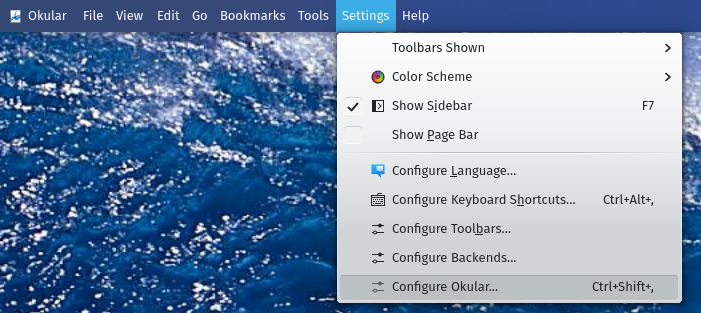
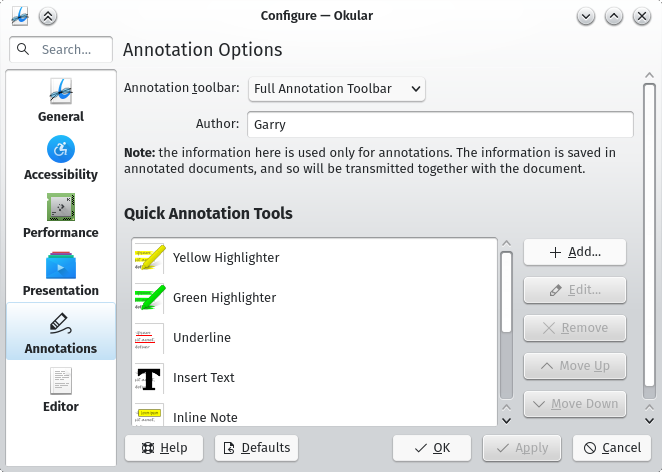
From the Okular menubar, click Settings > Configure Okular. From the left column, click "Annotations."
From Annotations Options, click "+ Add" to add a new annotation tool.
Change the Type from "Pop-up Note" to "Stamp." Don't forget to give it a name, such as "My signature."
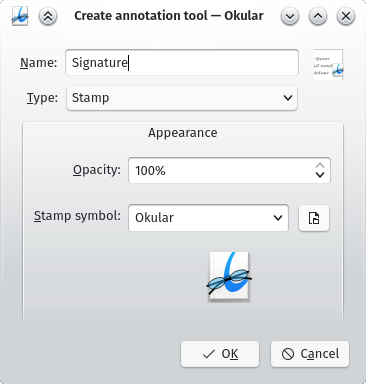
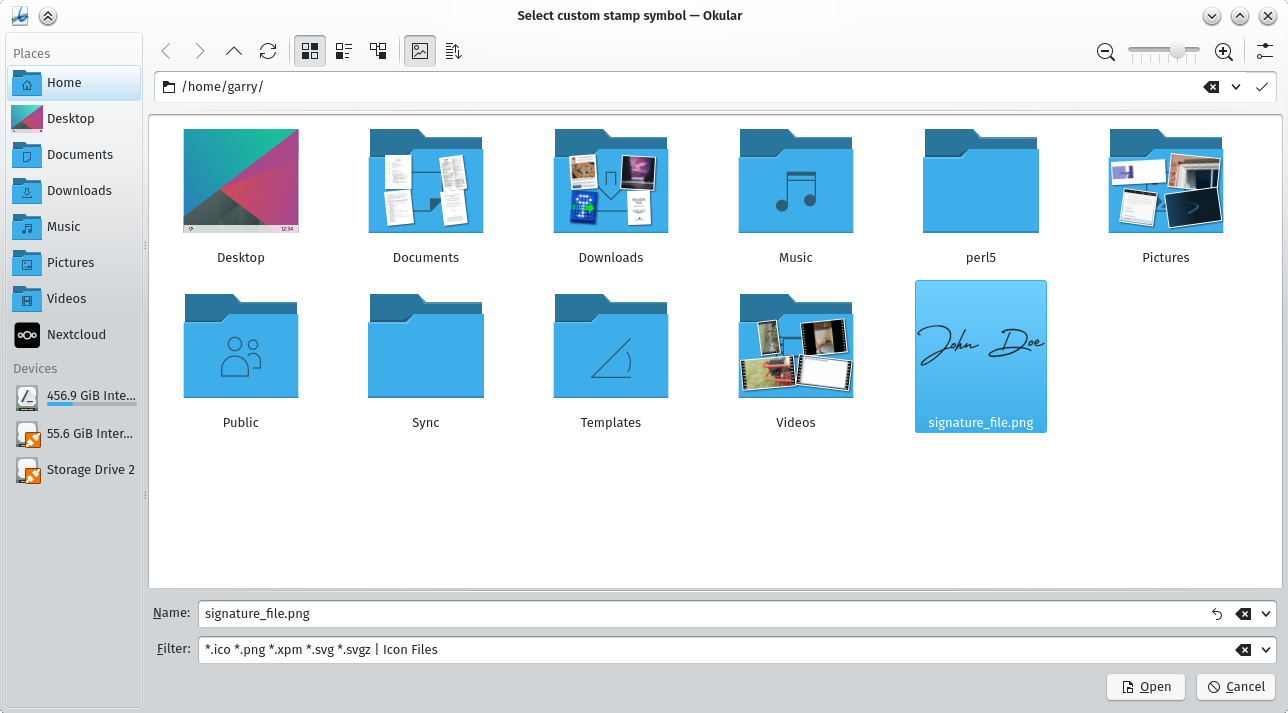
Click on the small select file icon beside the Stamp symbol drop-down box, then navigate your file system to the location of your signature file and open it.
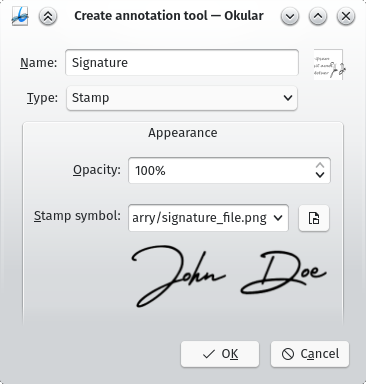
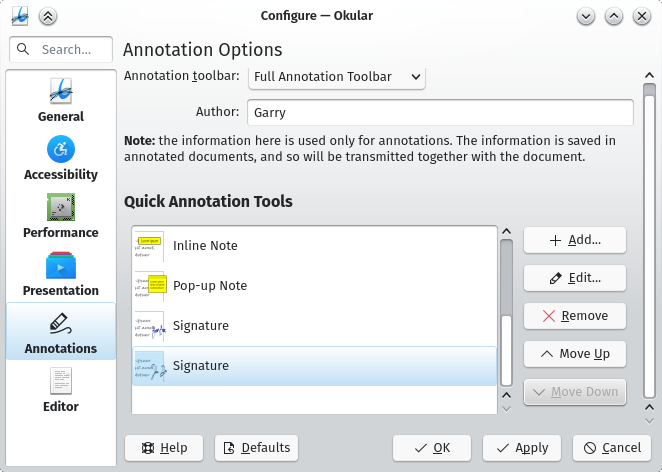
Accept the changes, then click Apply and OK to apply them. You should see your signature as an available stamp in the Annotation Options window. Close this window out and go back to the PDF you want to insert a signature in.
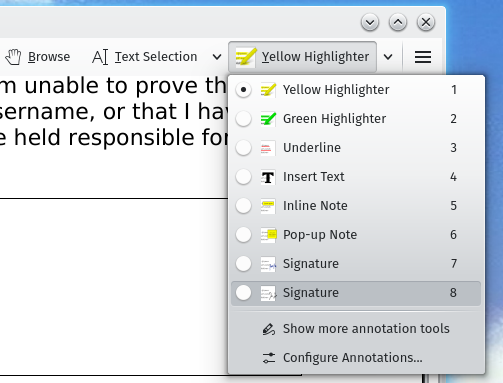
In the top-right corner of Okular, select the drop-down button and select your signature from the menu.
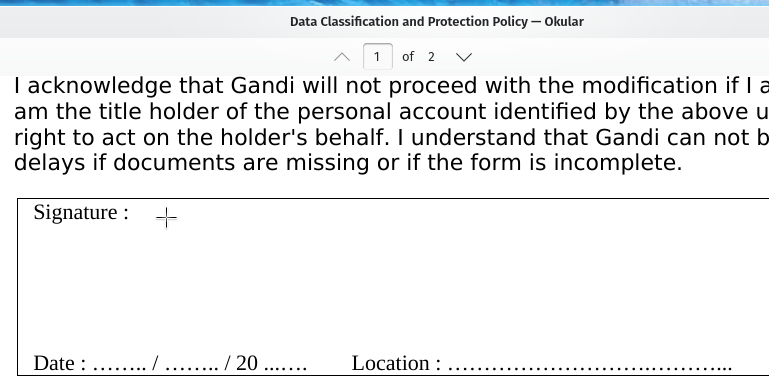
Your pointer icon will change to a cross-hair. Point this in the general location of where you want the signature.
If you want to move the signature, you can click on the "Browse" hand icon in the top-right corner of the window, click once on the signature, then you should be able to move it and resize it.
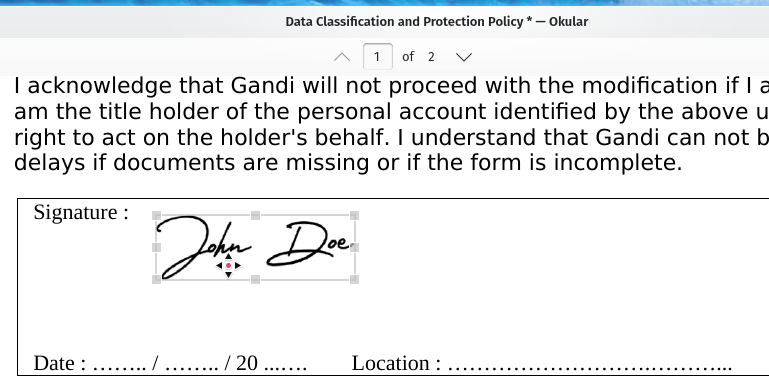
And that's all!
Thanks for reading my blog!
[Back to top]
Comments: