 Blog
Blog Links
Links Contact
 About
AboutFollowup review of KDE Plasma 6 on Debian 13 & demonstrating an improved desktop UX workflow
Publish Date: 2026-05-14
So it's been just little over a week here with KDE Plasma 6 on Debian 13 and I haven't yet run into any major work stoppages or system krashes that weren't self-inflicted.
For the most part it works and hasn't yet annoyed me. I can't recall if I did this out of reflex or if the Debian version of the Plasma desktop pre-disables the Baloo file indexer, but it's disabled, which is fine in my book!
Deja Dup has been working splendid for automatic file backups, the Discover store has been handling system updates swell, Firefox and Thunbird ESR versions have been stable-ish, Bluetooth has been working without a hitch for my Apple Magic trackpad and portable JBL speaker, and I haven't had any major audio or network issues either.
Minor oddities I've picked up on:
- On occasion it might not automatically switch over to the JBL bluetooth speaker upon connecting, but it doesn't bother me.
- Sometimes the keyboard back light on my laptop will be disabled when waking the device from sleep.
- The lock screen fails to lock in time before the system suspends, which causes my desktop to remain visible for a few seconds when waking the device. This happens on the Xorg session. I haven't tested the Wayland session, but I suspect it works properly there. It's no matter for me though, because I have a solution for that.
- The global menubar plasmoid is sometimes flaky when waking the device from a suspend state, so I created a little panel launcher button that when clicked upon, will reset the Plasma shell without losing my session. It's a little silly, but the button actually works great.

An improved desktop UX workflow
I've been having a lot of fun trying out all manner of different desktop layouts and workflows on the Plasma desktop. So far I've liked the following dockbar and global menubar setup similar to macOS, but better.
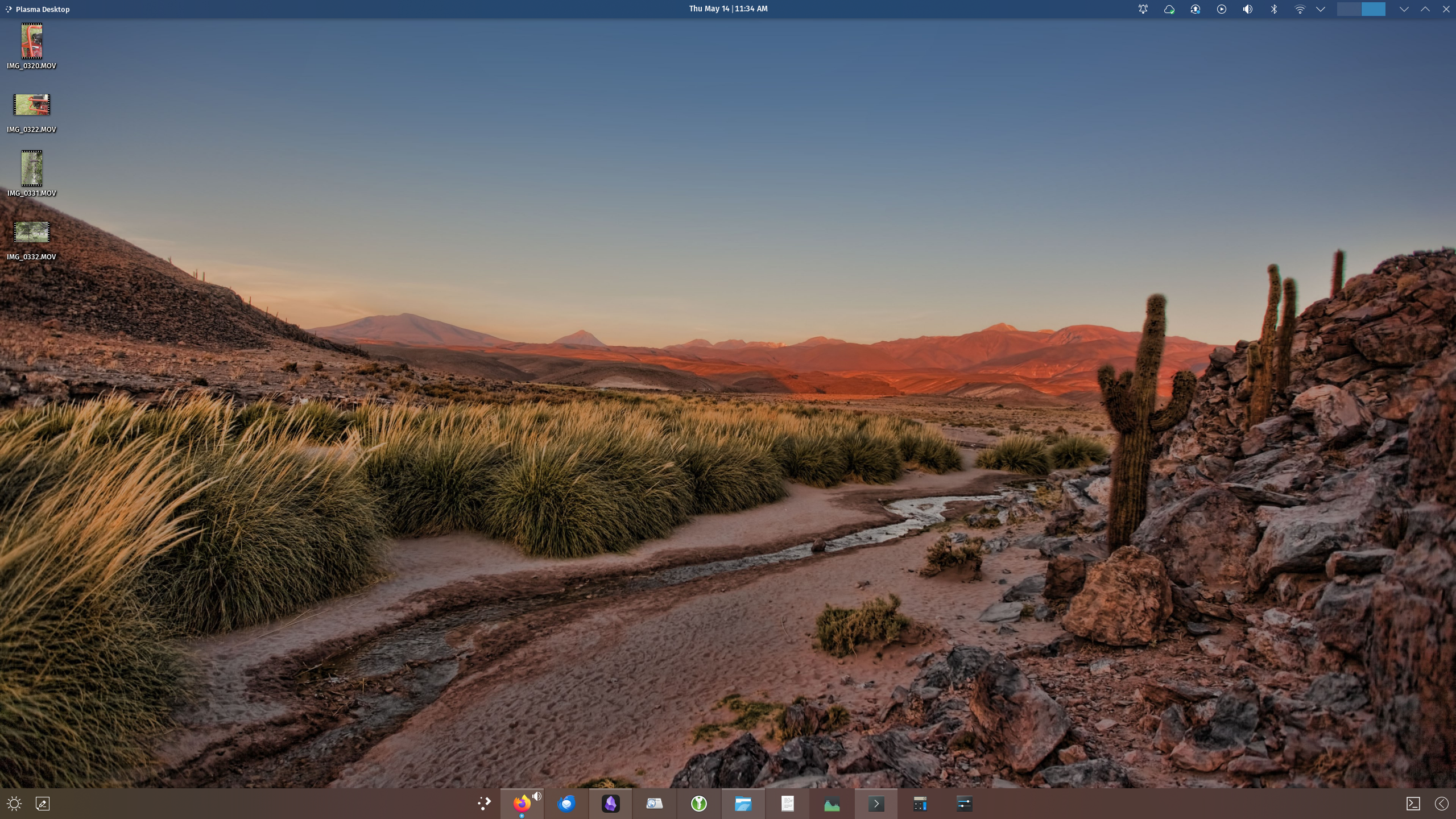
Customized Plasma 6 Desktop on Debian 13
On my larger QHD display, I found the traditional left aligned start button, quick launch, and taskbar to be more work than it needed to be, causing me to move the pointer a lot. I've come to understand where a center aligned bottom dockbar makes sense on larger and wider displays. It's close to the center of the screen while not requiring as much travel, making it more accessible.
The global menubar feature is also pretty nifty, which I find alright being separated from the application window in this manner. I don't frequently use the menubar in my applications, so it's okay to remain distant and out of the way, however a menubar is always preferable to a stack style menu (aka hamburger menu) thrown off to the side as an afterthought. All menu options should remain visible and accessible and at no point ever hidden.
In addition to the global menubar, I found a plasmoid for enabling window controls from the panel bar too which greatly extends the top panel bars functionality (See Application Title Bar.) There are a lot of different options for the titlebar plasmoid widget, but I prefer it to only display the window control buttons (i.e. minimize, maximize, close.)
In this setup, the window manager title bar is utilized exclusively for non-maximized floating application windows that can be easily clicked, dragged around, and resized as usual. When the application window is maximized, the titlebar becomes integrated into the top panel containing both the global menu and window controls. This is a more optimal solution for maintaining vertical space whilst not tampering with titlebars in a floating state; they're floating for a reason after all because I want to easily move them or reshape the window; replacing them as a toolbar is counter intuitive.
What I find nice about this setup is that I can have a single panel for the system tray, notifier, calendar, and desktop pager while paired with a global menubar and window controls without cluttering up the primary dockbar. In my opinion, this is a lot cleaner than say, client side decorated application windows that omit the menubar for a stack button while cluttering up ideal space as a draggable title bar with toolbar buttons, tabs, and input forms.
I've made a short video demonstrating the workflow process:
Certainly I'm not the first one to come up with this particular workflow, but it leaves me wondering why this direction was never taken up by desktops other than Canonical's Unity and macOS (minus the window manager button integration?) Unfortunately not all applications are compatible with the global menu bar, which probably answers my question, but there remain plenty of applications it works well with. I believe this is the direction modern desktops should have move toward, rather than where things are at today. I should also note that I've only used the Xorg session here. I doubt any of this works on Wayland due to its limited nature, so this mostly serves as a demonstration of what is possible, or was.
If anyone's interested in how I've set everything up, then let me know and I'll write a how-to post.
Thanks for reading my blog!
[Back to top]
Comments: